
Part of: Law Firm Operations: Systems That Scale Your Practice (2026)

Ditch the Double Data Entry: Your Guide to a CRM Software QuickBooks Integration

Tired of typing the same client information into your CRM and then again into QuickBooks? For a small law firm, every minute spent on administrative w...

intake.link Team
15 min read
crm software quickbooks integration, law firm billing automation, legal accounting software, quickbooks for law firms, legal tech
Ditch the Double Data Entry: Your Guide to a CRM Software QuickBooks Integration

Tired of typing the same client information into your CRM and then again into QuickBooks? For a small law firm, every minute spent on administrative work is a minute you can't bill. A crm software quickbooks integration bridges that gap, creating a seamless, automated workflow from client intake directly to your financial records, so you get paid faster and eliminate costly errors.

This isn't just about convenience. This is about building a more profitable and efficient practice.

Stop Leaking Revenue Through Admin Work

A tired accountant buried in physical paperwork, while QuickBooks software digitizes and saves time.

If your billing process involves manually creating an invoice, emailing it, and then remembering to update QuickBooks after the payment clears, you're losing money. It’s a slow, error-prone system that directly eats into your firm's profitability.

This isn't a minor issue. Research shows attorneys spend an incredible 48% of their time on non-billable admin tasks. Nearly half your week is spent on work that generates zero revenue, with duplicate data entry being a primary culprit. Connecting your tools is the first step in reclaiming that time and building more efficient law firm operations.

The Real Cost of Disconnected Systems

When your client management and accounting software don't communicate, you create friction and expensive problems. For a small firm, this gap leads directly to:

  • Delayed Invoicing: Manual invoice creation is tedious, often getting pushed to month-end, which kills your cash flow.
  • Data Entry Errors: A single typo in an amount or client name can lead to awkward follow-ups and hours of reconciliation.
  • No Financial Clarity: Without a real-time view of accounts receivable, you're making financial decisions in the dark.
  • Wasted Time Chasing Payments: It's hard to track who's paid when your systems are siloed, turning you into a part-time collections agent.

This is a strategic move to reclaim billable hours and ensure you get paid for your work, faster. By connecting your systems, you build a foundation for growth without hiring more admin staff.

A solid integration lets information flow automatically. When a new client pays their retainer, the system instantly creates a customer profile and a paid invoice in QuickBooks. No manual work required. This creates a single source of truth for all client and financial data, eliminating the guesswork and letting you focus on practicing law.

Your Pre-Integration Data Checklist
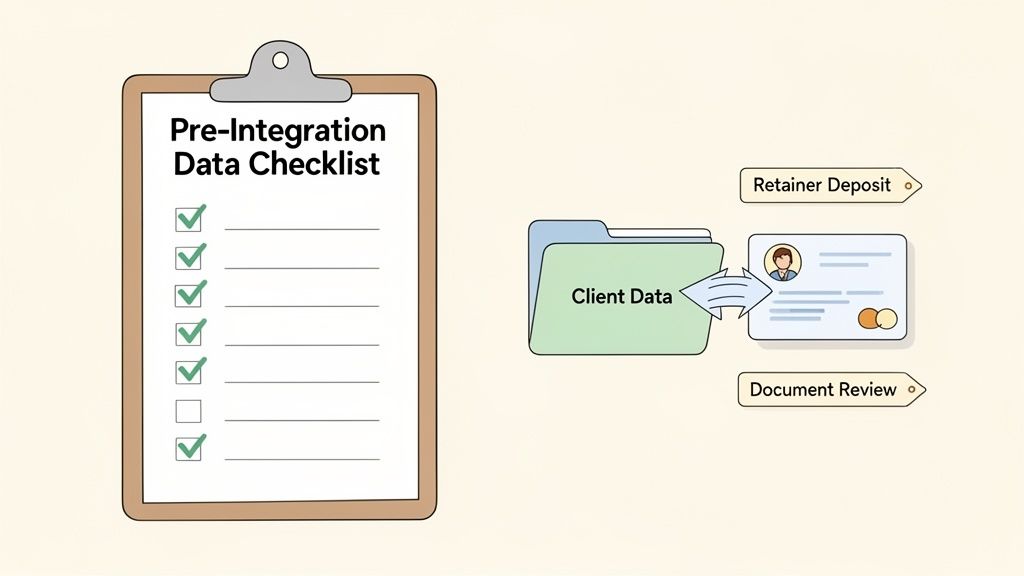
An image illustrating a pre-integration data checklist and client data management process, including document review.

Jumping into a CRM and QuickBooks integration without prepping your data is a recipe for chaos. A rushed connection will flood your systems with duplicate contacts and mismatched records, creating a mess that costs you more time than it saves.

Taking a few hours to prepare is the most important step for a smooth transition. Your goal is to ensure the information flowing between your client and accounting systems is clean and accurate from day one. This small upfront investment prevents massive headaches later.

Clean Up Your Client Data

First, tackle your existing client lists in both your CRM and QuickBooks. Duplicate entries are the most common source of integration errors. Merge duplicate records, standardize names (e.g., "Jane A. Doe" vs. "Jane Doe"), and purge old contacts. Fixing these small discrepancies ensures one client equals one record across all systems.

Standardize Your Service Items

Your firm offers specific services, and QuickBooks needs to reflect that. Don't just use a generic "Legal Services" item. Create and standardize items that align with your actual work, such as:

  • Retainer Deposit - Family Law
  • Hourly Billing - Document Review
  • Flat Fee - Estate Plan

When these are standardized before you integrate, any invoice from your CRM will automatically map to the correct service in QuickBooks. This gives you a clear picture of where your revenue comes from without any manual cleanup.

Establish a Single Source of Truth

When you connect two systems, one has to be in charge. For a law firm, your CRM should always be the source of truth for client information. This means client details should flow one way: from the CRM to QuickBooks.

This one-way flow is critical. If a client updates their address, you enter it in the CRM. The integration then pushes that update to QuickBooks. This simple rule prevents staff from accidentally overwriting correct CRM data with outdated information from an old accounting file.

The initial information a client provides is the foundation of their file, which is why a well-structured intake process is so important. You can learn more by reading our complete guide to law firm client intake.

Map Your Chart of Accounts Correctly

Finally, review your Chart of Accounts in QuickBooks. For a law firm, this isn't just bookkeeping—it's essential for compliance, especially when handling client funds. You must have separate accounts to manage operating funds and trust funds.

Specifically, set up two key accounts:

  1. An IOLTA Checking Account (Bank Account) for holding client funds.
  2. An IOLTA Liability Account (Other Current Liability) to track the money owed to each client.

When you configure the integration, you’ll map retainer payments to these IOLTA accounts. This ensures you maintain perfect compliance and avoid the ethical nightmare of commingling funds from the start.

How to Connect Your CRM and QuickBooks

Connecting your systems isn't a massive IT project. It's a practical step to stop wasting time on manual data entry. The goal is to build a reliable bridge so client and payment information flows directly from your intake process into your financial records.

Most modern CRMs and intake platforms, like intake.link, connect to QuickBooks Online through a direct, secure API. You'll usually find the integration option in your CRM's settings, authorize the connection by logging into QuickBooks, and you're done. It's typically a one-click process.

For firms using QuickBooks Desktop, the process is different. You'll likely need a connector tool or plugin installed on the same computer that hosts your company file. Before you begin, always confirm that your CRM platform explicitly supports your version of QuickBooks Desktop.

Mapping Your Core Data Fields

Once connected, the real work is data mapping—telling the two programs how to talk to each other. You create rules like, "When you see 'client name' in the CRM, put that data into the 'customer name' field in QuickBooks."

Getting this right is critical for accurate automation. For any law firm, three mapping rules are non-negotiable:

  • CRM Contact to QuickBooks Customer: Map the client's name, email, phone number, and address from your CRM to the corresponding fields in the QuickBooks customer profile.

  • CRM Matter/Case to QuickBooks Sub-Customer: This is a best practice. By making each legal matter a "sub-customer" under the main client, you can track every invoice and payment for each case, keeping your records incredibly clean.

  • Intake Form Fields to Invoice Line Items: When a client pays a retainer, that transaction must be recorded perfectly. Map the "Retainer Payment" field from your intake software directly to your "Retainer Deposit" service item in QuickBooks.

Here’s how it works in practice:
A new client, Sarah Jones, retains you for a divorce and pays a $5,000 retainer online.

  1. Your CRM creates a contact for "Sarah Jones." The integration immediately creates a customer in QuickBooks.
  2. The CRM creates a matter titled "Jones Divorce." The integration creates a sub-customer in QuickBooks under Sarah Jones.
  3. The $5,000 payment automatically generates a paid invoice in QuickBooks, linked to the "Jones Divorce" sub-customer, with the line item "Retainer Deposit."

This detailed mapping ensures every dollar is accounted for and tied to the correct client and case—all without your team lifting a finger. It's a core part of how you can automate your entire client intake workflow.

One-Way vs. Two-Way Sync: Which to Choose?

You'll also decide on your data flow: one-way or two-way sync. The choice is simple but has a huge impact on your data's integrity. For law firms, we strongly recommend a one-way sync for client demographic data, with your CRM acting as the single source of truth.

A two-way sync can be perfect for invoice statuses, however. When a payment is recorded in QuickBooks (like a check), you want that "Paid" status to sync back to the client's record in the CRM. This gives your team a real-time view of who has paid.

Data Type Recommended Sync Method Why It Works Best
Client Contact Information One-Way Sync (CRM → QuickBooks) Establishes your CRM as the "master record" for client details, preventing accidental overwrites.
New Invoices One-Way Sync (CRM → QuickBooks) Invoices should always originate from client and matter data in your CRM, making it the logical starting point.
Payment Status Two-Way Sync Allows payment updates in QuickBooks to reflect in the CRM, giving your entire team visibility.

Being strategic about your sync directions gives you the best of both worlds: data integrity for core information and real-time visibility for financial statuses.
Automating Your Intake to Invoice Workflow

You've connected your systems. Now it's time to build a hands-off workflow that moves a new client from inquiry to a paid invoice in QuickBooks without a single manual step. This is where a CRM software QuickBooks integration transforms your firm.

This is a fundamental shift in how you operate. You can build a seamless journey where a potential client signs your fee agreement, pays their retainer, and fills out an intake form in one smooth sequence. That single action kicks off a cascade of automated events on your end.

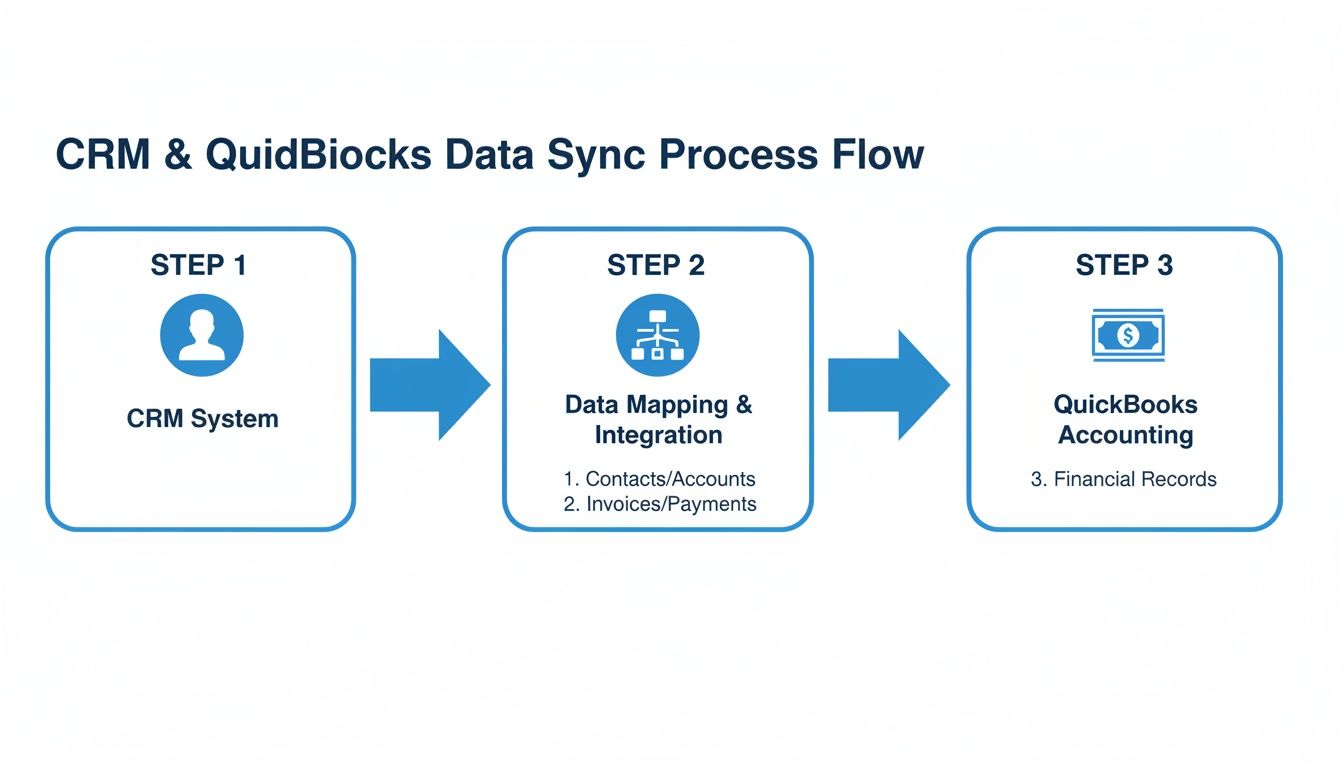
Flowchart showing CRM to QuickBooks data sync process: CRM system, data mapping, then QuickBooks accounting.

A well-mapped integration ensures your client data moves cleanly from the CRM, where you manage the relationship, directly into QuickBooks, where you manage the money. It's that simple.

From First Click to Paid Invoice

Here's how the automated flow looks in the real world:

  • Unified Intake: A potential client gets a single link that guides them through your intake process. They fill out their info, e-sign your fee agreement, and pay their $3,500 retainer by credit card in one session.

  • CRM Record Creation: The moment they submit, a new contact and matter are instantly created in your CRM. All data from the intake form is placed in the correct fields automatically.

  • QuickBooks Invoice Generation: The integration immediately tells QuickBooks to generate a new, paid invoice for $3,500. It's automatically linked to the correct client and matter.

  • Correct Fund Allocation: Because you mapped your accounts correctly, that $3,500 retainer is deposited directly into your IOLTA trust account in QuickBooks, keeping you compliant.

This entire sequence happens in about 90 seconds. No one on your team had to do anything. You can see how this becomes a cornerstone of building stronger law firm operations.

Eliminating Errors and Gaining Visibility

The most immediate win is the elimination of duplicate data entry. This frees up administrative time for billable work and stamps out the inevitable errors that come with manual entry. Integrated systems can slash data entry errors by as much as 60%, ensuring accuracy from intake right into your books.

A simple typo on an invoice can take hours to unravel and damage a client's trust. Automation makes these mistakes a thing of the past.

This automated workflow also gives your whole team a real-time, accurate view of every client's financial standing. Anyone at your firm can see if invoices are paid and retainers are current right from the CRM, allowing for smarter decisions and healthier cash flow.

Troubleshooting Common Integration Issues

Even a perfect CRM and QuickBooks integration can hit a snag. The good news? Most issues are predictable and easy to fix. When something goes wrong, it’s almost always a data mismatch causing a sync to fail or create duplicates.

Handling Duplicate Client Records

This is the number one headache. You see two entries for the same person: "John Smith" and "John F. Smith." This happens when your CRM has one version, and someone manually enters an invoice in QuickBooks with another.

To stop this, designate your CRM as the master record. Use QuickBooks' "Merge Customers" tool to combine duplicates, always choosing the version that exactly matches your CRM record as the master. Train your team to use consistent naming conventions from day one.

Fixing Sync Errors from Incorrect Field Mapping

Did an invoice go missing or a payment sync to the wrong client? The culprit is almost always a field mapping error. This happens when a field in your CRM isn't linked to the correct matching field in QuickBooks.

Fixing it is straightforward. Head back to your integration settings and review your mapping rules. Carefully check that each key field—client name, matter name, service item, and payment amount—is pointing to the right place. Run a quick test with one client to confirm it's working.

Managing Partial Payments, Credits, and Refunds

Your firm’s finances aren't always simple. Clients make partial payments, or you issue credits and refunds. These non-standard transactions can throw off an automated sync if not handled correctly.

  • Partial Payments: Always record partial payments directly in QuickBooks. A properly configured two-way sync will then update the invoice balance in your CRM automatically.
  • Credits and Refunds: These should always be initiated in QuickBooks, your system of financial record. Issue a credit memo or refund from within QuickBooks. The adjustment will sync back, ensuring both systems reflect the true financial status of the account.

By following these steps, you can keep your integration running smoothly, ensuring your client and financial data are always perfectly in sync.

Measuring the ROI of Your Integrated System

Connecting your systems isn't just about efficiency; it's a direct investment in your firm's profitability. The return on investment (ROI) shows up in saved hours, fewer errors, and getting paid faster.

If you save just five hours a week on tasks like creating invoices and reconciling payments, that adds up to over 250 hours a year. At a conservative paralegal rate, you’ve just saved your firm tens of thousands of dollars that can be redirected to billable work.

Quantifying the Financial Gains

The value is even clearer when you look at billing accuracy. Automation removes the risk of typos, ensuring every invoice is perfect and reducing painful write-offs.

The financial upside is well-documented. Studies have shown an $8.71 ROI for every dollar spent on CRM. Today, with platforms like intake.link that automate the entire onboarding and payment process, that number is even higher. We see firms cutting financial reporting time by as much as 20%.

You can dig deeper into these CRM financial benefits and see the numbers for yourself.

Faster Onboarding Means More Revenue

The link between onboarding speed and revenue is direct. When a potential client can sign your fee agreement and pay their retainer in a single five-minute online session, you close the deal before they call another firm. This boosts your conversion rates and overall revenue.

This system is your operational leverage. It gives a solo attorney or small firm the efficiency of a much larger team, letting you focus on practicing law instead of chasing paperwork.

Ultimately, the ROI comes down to three key metrics:

  • Hours Saved: Calculate the weekly time spent on manual data entry before and after.
  • Errors Reduced: Track the drop in billing disputes and write-offs over a quarter.
  • Conversion Speed: Measure the time from first contact to when a retainer is paid.

This isn't just about efficiency; it's about building a scalable foundation that allows your firm to grow its client base without proportionally increasing administrative headcount.

Frequently Asked Questions

When linking your CRM and QuickBooks, a few common questions always come up. Here are the answers small law firms need.

Can I Integrate My CRM with QuickBooks Desktop?

Yes, but the process is different than for QuickBooks Online. QuickBooks Desktop lives on a specific computer, so you'll almost always need a special connector or plugin installed on that machine to bridge the gap. Before choosing any software, double-check that it explicitly supports your specific version of QuickBooks Desktop.

What Happens if a Client Is in Both Systems Already?

This is why a pre-integration cleanup is so critical. Modern tools are designed for this and typically match records using an email address. You can set a rule to merge duplicates, but best practice is to set your CRM as the "master" record to avoid overwriting important case information with outdated accounting data.

A proactive data audit is your best defense. Spending one hour cleaning up your client list before you connect your systems can save you dozens of hours in manual fixes later.

How Does This Integration Handle IOLTA Trust Accounting?

It handles it perfectly—if you set it up correctly. This is non-negotiable for compliance. During field mapping, you must ensure any retainer or trust payments are directed specifically to your IOLTA liability account in QuickBooks. They should never go to your firm's revenue or operating account. A legal-specific CRM will allow you to designate different payment types to ensure client funds are always recorded as a liability.


Ready to stop chasing payments and eliminate data entry for good? intake.link unifies your entire client onboarding process into a single link, automating intake, signatures, and payments directly into your existing systems.

Explore how unified workflows replace scattered tools

Ready to transform your intake process?

Stop losing leads to slow follow-up. intake.link brings e-signatures, payments, and intake forms into one seamless experience.